
Articles
How to prepare a blog article and send it to WordPress.
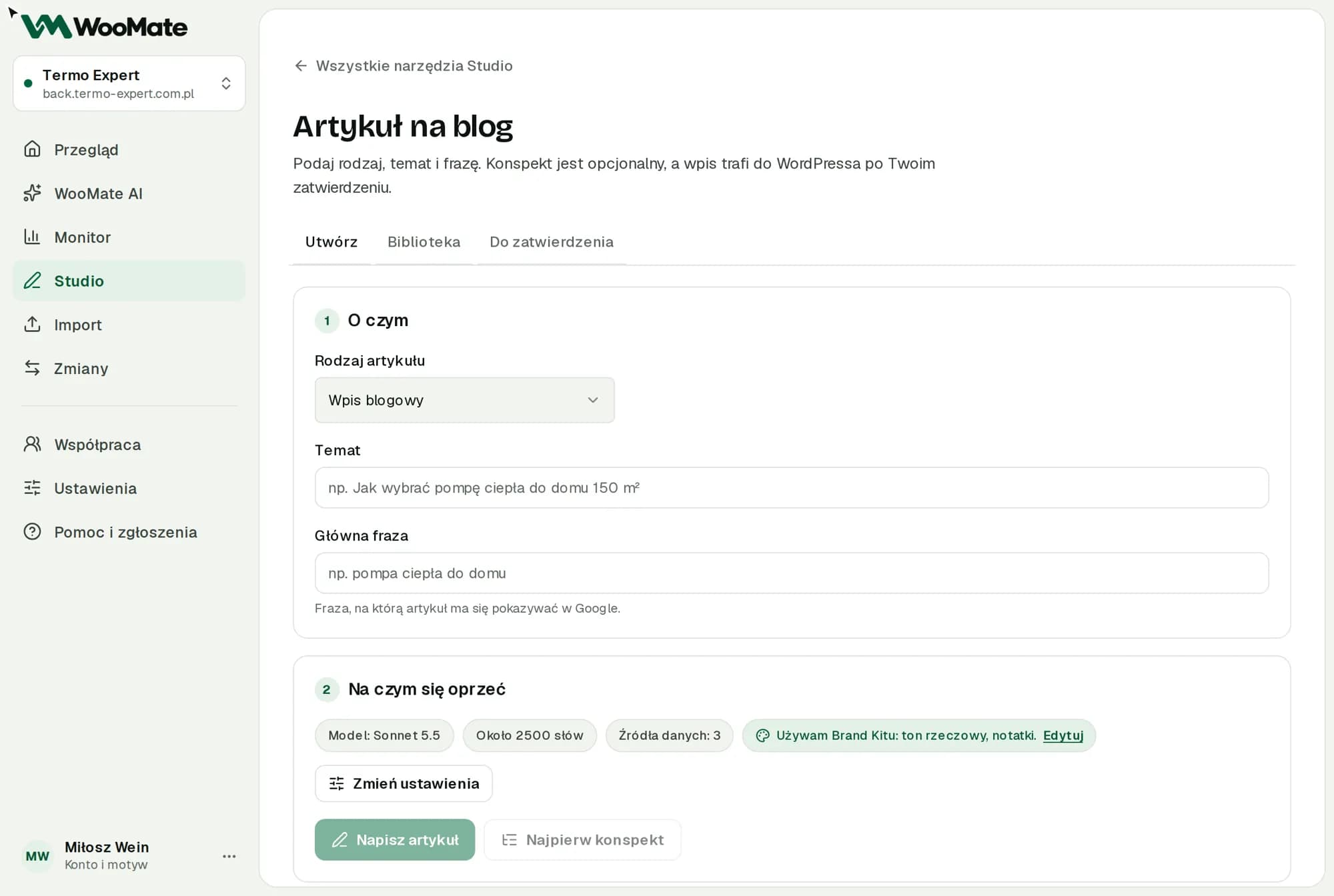
This tool writes an article with a Google description and FAQ, and sends it to WordPress once you approve.
What you need first
- A connected store and an AI key.
- A WordPress application password to send the article. Without it, you can only copy the article.
Steps
- Choose an Article type: Blog post, Ranking, Comparison, Test or review or Industry analysis.
- Fill in Topic and Focus keyphrase.
- In the settings, choose a Length from 800 to 3,000 words. You can also add Extra context, Internal links and a Style sample.
- Click Outline first and edit the outline, or go straight to Write article.
- Review the text, the Google description and the structured data.
- Under Sending to WordPress, choose As a draft or Publish right away.
- Click Show the draft for approval or Show the publication for approval.
- Approve the change.
Publish right away takes effect only after you approve.
Limits
- The Style sample can be up to 3,000 characters.
- Check the facts and numbers in the article yourself, especially in rankings and tests.
- You can't remove a new post with the Undo button. Delete it in WordPress.
Common problems
- The Google description is incomplete. Write the article again before sending it.
- Invalid structured data was skipped. The article text is still available.
- Sending fails. Click Check the WordPress connection.
Related articles
Can't find the answer? Write to hello@getwoomate.com or request free onboarding help.