
Supplier price lists
How to watch PDF price lists, compare them with your store and approve price changes.
Supplier price lists compare a manufacturer's PDF with the prices in your store. A change reaches your store only after you approve the preview.
What you need first
- A plan with Import: Pro, Agency or Pro Lifetime, or the free trial.
- An AI key, if you want AI to read the rows. You can also add rows manually.
- A public page with price lists, or a PDF file up to 12 MB.
Add a source
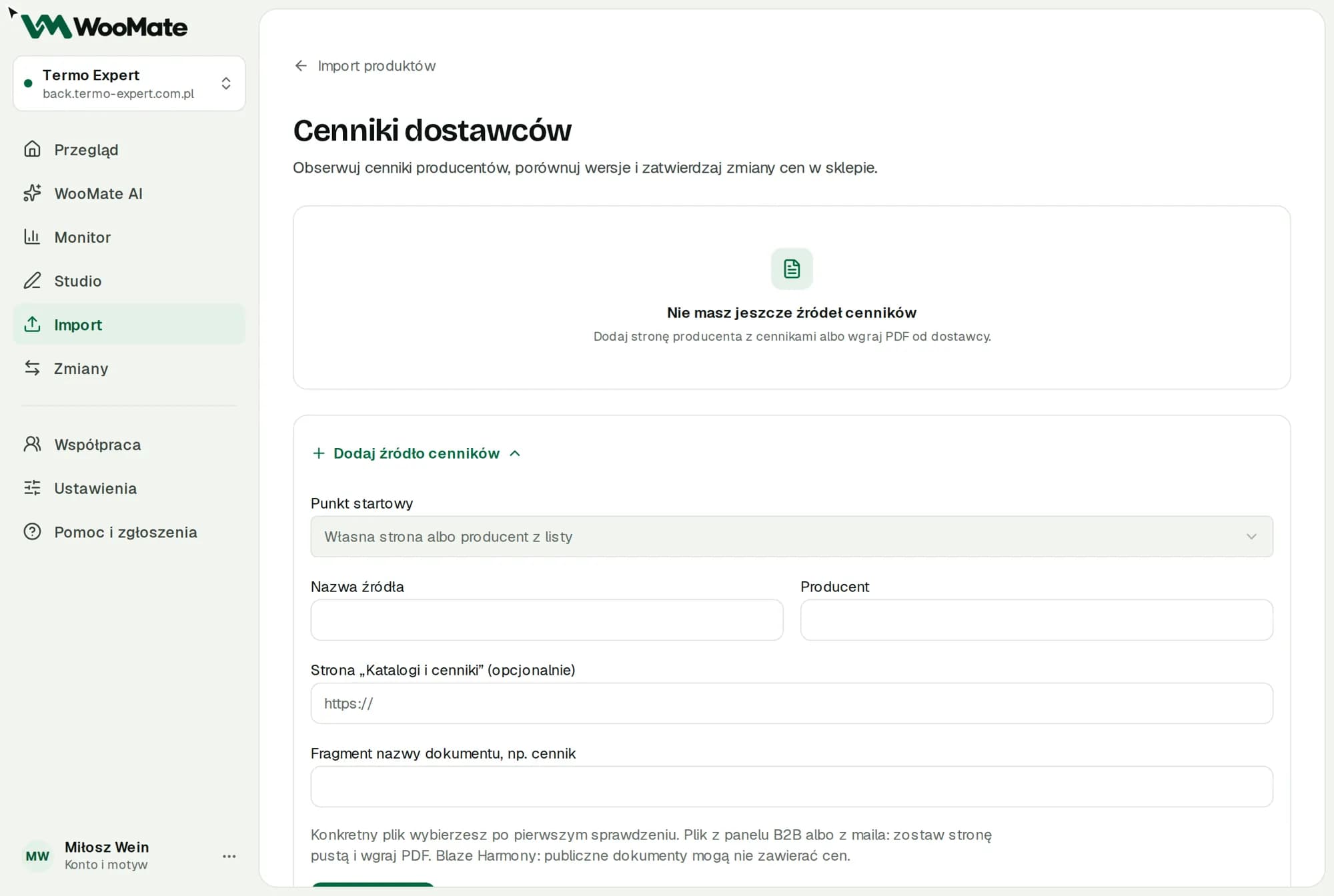
- Go to Import, choose Supplier price list (PDF), then Open price lists.
- In the Add a price list source form, fill in Source name and Manufacturer. The Starting point field fills in ready-made price list page URLs for a few manufacturers (Defro, HKS Lazar, Blaze Harmony). Different manufacturer? Choose your own page.
- Enter the Catalog / price list page (optional) and Document name contains, e.g. price list.
- Click Add source.
- Pick a document from the list or paste a Direct public PDF link. Got the file from a B2B portal or an email? Leave the page empty and upload the PDF.
The first saved file is the baseline, not a detected price increase.
Read the rows
- On the Document tab, choose Read the whole document or Selected pages only.
- Click Check cost. You'll see the maximum cost charged to your key.
- Click I agree, read it. The AI reads 4 pages at a time, in the background.
- Check every price, configuration and source quote. Confirm net or gross and the unit.
- Click Save reviewed rows.
WooMate flags models missing from the next price list only after you check the box confirming the reading is complete. It doesn't turn off products in your store.
Set a price rule
On the Settings tab, save the Price rule and VAT:
- List price unchanged
- Customer discount from the list price
- Markup on cost after trade discount
- Margin on cost after trade discount
Enter the VAT rate and confirm it. WooMate doesn't assume 23%. Changing the rule cancels unapproved previews.
Link products and change prices
- On the Store changes tab, click Link next to a row and point to the exact product or variation. Later price lists will use this link.
- Select rows in the Linked products list.
- Check the comparison confirmation and click Prepare change preview.
- Approve all at once, or approve selected ones with Approve store write.
The preview expires after 30 minutes. You can add a new model as a draft simple product.
Watching
When watching is on, WooMate checks the source every 24 hours. Check now works once a minute. Pause and Resume control watching.
Limits
- 10 sources and 150 MB of files per store.
- One PDF up to 12 MB.
- 30 stored PDFs per source.
- Up to 100 pages and 500 rows.
- Checking without AI is included in the Import price.
- During the trial, an approved or uncertain change uses 1 product from the Import limit.
Common problems
- Source error: open the source's Settings and check the URL.
- Verify the result in the store: use Verify the result by reading the store. WooMate doesn't retry an uncertain write.
- Preview expired — prepare a new one: prepare the preview again.
- The document on the manufacturer's site has no prices: some manufacturers publish only technical documents (this happens with Blaze Harmony, for example). Ask the supplier for a price list and upload the PDF.
Related articles
Can't find the answer? Write to hello@getwoomate.com or request free onboarding help.