
How approval works
Why changes wait for your decision and how to approve or reject them.
Changes prepared by WooMate AI, Studio, Monitor, supplier price lists and Collaboration wait for your decision before they reach your store. You save them after approving.
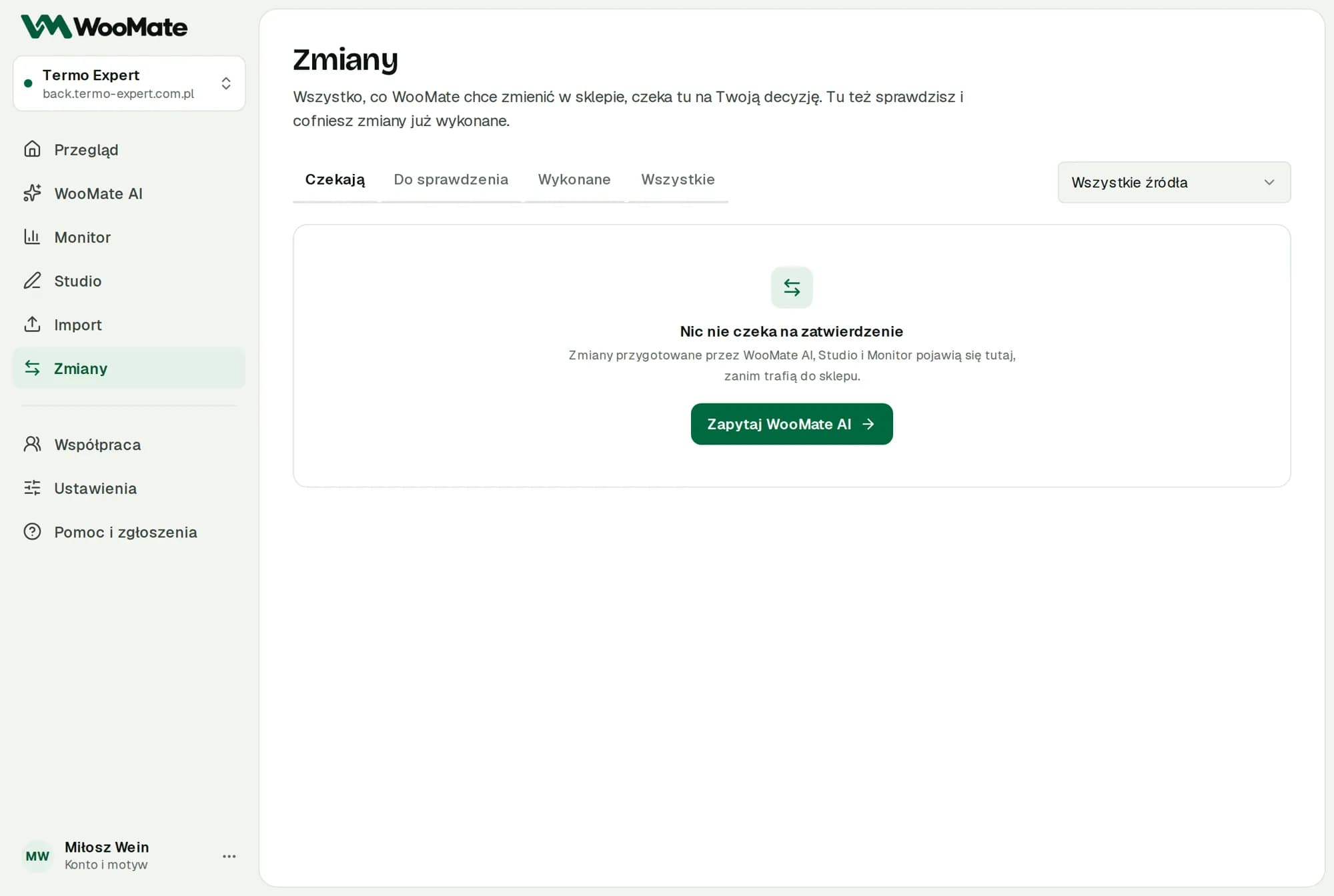
The change card appears below the message in the chat and on the Changes screen. When changes are waiting, you'll also see a bar with their count and a Review button.
Steps
- Open Changes, Waiting tab, or the card in the chat.
- Check the fields before and after. For texts, click Show text before and after.
- Read the warnings.
- Uncheck the items you don't want to save.
- Click Approve change (for several items: Approve … changes) or Reject.
Before saving, WooMate reads the data again. If it has changed since the preview, WooMate stops so it doesn't overwrite newer changes.
Warnings
| Warning | Meaning |
|---|---|
| WooCommerce may email the customer about the status change. | Applies to orders. |
| This change cannot be undone from WooMate. | There won't be an Undo button. |
| A new item will be created in your store. | The operation creates a product, post or other item. |
| The item will be deleted. | The operation deletes data. |
| This affects a running campaign and changes spend as soon as it is saved. | Applies to campaigns. |
Limitations
- Typing “yes” in the chat doesn't trigger a save.
- You start an import or add a graphic to a product with a separate button, without this card.
- Approval expires. See Statuses and approval expiry.
- On the Agency plan, changes from Collaboration proposals require the client's approval.
Common issues
- The data changed since the preview. Prepare the change again.
- The target integration changed. Prepare a new operation.
- This operation expired or was already handled. Prepare it again if you still need it.
Related articles
Can't find the answer? Write to hello@getwoomate.com or request free onboarding help.